If you are planning to switch mobile carriers and keep your phone number, generating a verizon transfer pin is the mandatory first step. In 2026, the telecommunications industry has strict protocols to protect consumer data and prevent fraudulent activities. Moving your number to a new provider requires authorization that only you can provide.
This comprehensive guide will walk you through everything you need to know about porting your number out of Verizon. We will cover the exact steps to generate your code, the security reasons behind it, and how to troubleshoot common issues. Our goal is to ensure your transition to a new carrier is smooth and secure.
Understanding the modern porting process is vital. Gone are the days when you could simply call a new provider and have them seize your number. Today, security is paramount. The Number Transfer PIN (NTP) acts as a digital lock on your cellular identity.
Contents
Understanding the Number Transfer PIN in 2026
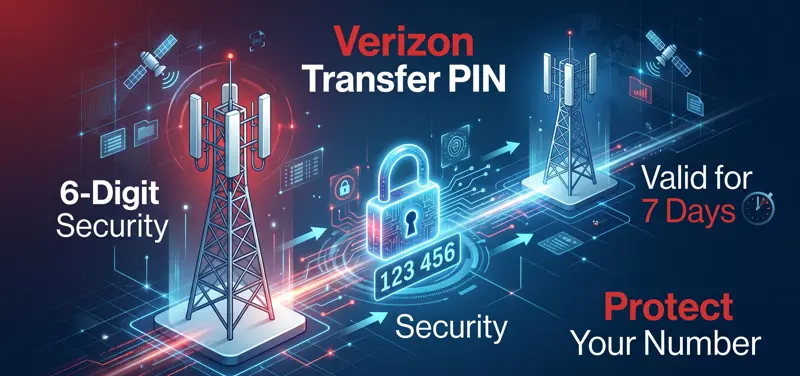
The telecommunications landscape has evolved significantly. A Number Transfer PIN is a unique, six-digit code generated specifically for the purpose of moving your phone number from one carrier to another. It is a temporary, highly secure passcode that expires after a set period.
Verizon implemented this system to combat the rising threat of SIM swapping and unauthorized port-outs. In the past, malicious actors could steal a phone number using basic account information. The NTP ensures that only the authorized account owner or manager can approve the transfer.
It is crucial to understand that your Number Transfer PIN is completely different from your standard Account Security PIN. Your Account PIN is used to verify your identity when calling customer service or visiting a store. The Transfer PIN has only one function: authorizing a port-out request to a competing carrier.
| Feature Comparison | Account Security PIN | Number Transfer PIN |
|---|---|---|
| Primary Purpose | Customer service verification | Authorizing number porting |
| Lifespan | Permanent (until changed) | Temporary (expires in 7 days) |
| Format | Typically 4 digits | Strictly 6 digits |
| How to Obtain | Created during account setup | Generated on-demand via App/Web |
The implementation of the Number Transfer PIN is a critical security measure mandated to protect consumers from unauthorized SIM swapping and fraudulent account takeovers.
Prerequisites for Generating Your Code
Before attempting to generate your code, there are a few conditions your account must meet. First, your Verizon account must be active. You cannot generate a porting PIN for an account that has already been suspended or disconnected.
Secondly, you must be the Account Owner or an Account Manager. Standard line users do not have the administrative privileges required to authorize a port-out. If you are not the account owner, you will need to ask them to generate the code for you.
Finally, your account must be in good standing. While FCC rules mandate that carriers must allow you to port your number even if you owe a balance, having a severely delinquent account can sometimes trigger fraud locks that prevent automated PIN generation. Ensure your billing information is up to date.
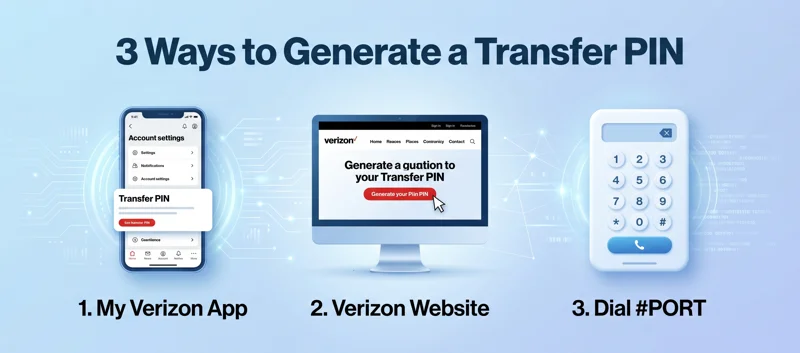
Method 1: Using the My Verizon App (Fastest)
In 2026, using the My Verizon mobile application is the fastest and most reliable way to secure your code. The app utilizes biometric security on your device, adding an extra layer of protection to the process.
To begin, open the My Verizon app on your smartphone. Ensure you are updated to the latest version available in the App Store or Google Play Store. Log in using your Account Owner or Account Manager credentials.
Once logged in, tap the gear icon or navigate to the “Account Settings” menu. Scroll down until you find the “Security” section. Look for an option labeled “Number Transfer PIN” or “Port Out Settings.”
Tap on “Generate PIN.” The app may prompt you to verify your identity using Face ID, Fingerprint, or an SMS code sent to your primary device. Once verified, your six-digit code will appear on the screen along with its exact expiration date and time.
Method 2: Using the Verizon Website
If you prefer using a desktop computer or do not have access to the mobile app, you can easily generate the code through the Verizon online portal. Open your preferred web browser and navigate to the official Verizon website.
Log into your My Verizon account. Hover over the “Account” tab in the top navigation menu and select “Account Settings.” From the dropdown menu, select “Security.”
Locate the section titled “Number Transfer PIN.” Click on the button to generate the code. Similar to the app, the website will require two-factor authentication to ensure you are the legitimate account owner.
After verifying the prompt sent to your phone or email, the website will display your six-digit PIN. Write this number down or save it securely, as you will need to provide it to your new carrier immediately.
| Generation Method | Estimated Time | Authentication Required |
|---|---|---|
| My Verizon App | 1 – 2 Minutes | Biometrics or SMS OTP |
| Verizon Desktop Website | 3 – 5 Minutes | Password and SMS/Email OTP |
| Dialing #PORT (#7678) | 2 – 4 Minutes | Account Security PIN |
Method 3: Dialing the Port Request Number
For users who prefer a direct cellular method, Verizon offers a specific USSD code to trigger the generation process. This method is highly effective if you do not have internet access but have cellular service.
Open your phone’s dialer application. Type in #PORT (which corresponds to #7678 on your keypad) and press the call button. You will be connected to an automated system.
The voice prompt will ask you to authenticate your identity by entering your standard four-digit Account Security PIN. After successful entry, the system will generate your new transfer code.
Instead of reading it aloud, the system will instantly send you an SMS text message containing your six-digit code and the expiration date. Keep this text message safe until your port is completed.
Important Differences for Business Accounts
If you are managing a corporate or business account, the rules differ significantly from consumer lines. Consumer accounts utilize the automated Number Transfer PIN system for efficiency and security.
Business accounts, however, generally do not use the My Verizon app or the #PORT system to generate a temporary code. Instead, the porting process relies on a static code.
For Verizon Business accounts, the transfer PIN is typically the standard Account Security PIN or a dedicated billing password established by the corporate administrator. You must also provide the exact billing address and company tax ID.
If you are a fleet manager trying to move hundreds of lines, you will need to contact your dedicated Verizon Enterprise account representative to authorize a bulk port-out request. Attempting this manually will result in system rejections.
Prepaid vs. Postpaid Porting Requirements
The type of service you have with Verizon also dictates the porting process. The instructions detailed above primarily apply to standard, postpaid wireless accounts.
If you are a Verizon Prepaid customer, the system functions slightly differently. In many cases, Verizon Prepaid requires you to log into the specific Prepaid online portal to request a release code.
Some prepaid accounts simply use the four-digit Account Security PIN as the transfer code. It is highly recommended to verify your specific account status by calling Prepaid customer support at *611 before initiating a transfer.
| Account Type | PIN Generation Method | Key Requirements |
|---|---|---|
| Standard Postpaid | App, Website, or #PORT | Owner/Manager Status |
| Verizon Prepaid | Prepaid Portal or Account PIN | Active service, No negative balance |
| Business/Enterprise | Static Corporate PIN | Tax ID and authorized admin |
What to Do After Receiving Your Code
Once you have successfully generated your six-digit code, you are ready to initiate the switch. Contact your new mobile carrier, whether you are moving to T-Mobile, AT&T, or a modern MVNO.
Provide your new carrier with three critical pieces of information: Your Verizon account number (found on your bill, not your phone number), your active phone number, and the newly generated Number Transfer PIN.
Your new carrier will handle the technical communication with Verizon. They will submit a port request using the credentials you provided. In 2026, this digital handshake usually takes only a few minutes for wireless-to-wireless transfers.
Never cancel your Verizon service manually before the transfer is finalized by your new carrier. Doing so will result in the immediate loss of your phone number.
Understanding Porting Timelines and Delays
The speed of a number transfer depends heavily on the type of numbers involved. Moving a standard wireless number to another major wireless carrier is virtually instantaneous. You will usually lose Verizon service and gain new service within ten to fifteen minutes.
However, if you are transferring a landline number to a mobile carrier, or porting to a smaller VoIP provider, the process can take anywhere from two to five business days. The legacy infrastructure requires manual verification.
During the transition period, your phone will experience “mixed service.” You might be able to make outgoing calls on the new network, but incoming calls might still route to the old Verizon SIM card until the broadcast update completes across all national cellular towers.
Dealing with Device Financing and Locks
Generating a port code does not erase your financial obligations. If you are currently financing a smartphone through Verizon’s device payment plan, porting your number will accelerate your billing.
The moment the port is successful, Verizon will automatically cancel your line of service. Any remaining balance on your device will immediately become due in full on your final bill. Be financially prepared for this charge.
Additionally, if your phone is financed, it may be carrier-locked to Verizon. While Verizon automatically unlocks phones 60 days after purchase, you must verify your lock status in your device settings before porting, otherwise, your phone will not accept the new carrier’s SIM card.
For more detailed information directly from the source, you can review the Verizon Official Port-Out Documentation.
Troubleshooting Common Generation Errors
Technology is not perfect, and you may encounter errors while trying to generate your code. One of the most common issues is the “Account Lock” error. This happens if you have recently changed your account password or updated your billing address.
Verizon places a temporary 48-hour security hold on PIN generation after major account changes to prevent unauthorized access. If you encounter this, you simply must wait out the security period.
Another frequent issue is the “Number Transfer PIN is Greyed Out” error in the app. This strictly means you are logged in as an Account Member rather than an Account Owner or Manager. You must log out and use the master credentials.
| Common Error Message | Likely Cause | Recommended Solution |
|---|---|---|
| Button is Greyed Out | Insufficient account permissions | Log in using Account Owner credentials. |
| Security Hold Active | Recent password or address change | Wait 48 hours for the security lock to lift. |
| Code Invalid at New Carrier | PIN expired after 7 days | Generate a brand new code via the app. |
| System Unavailable | Verizon network maintenance | Wait a few hours or call customer service. |
Security Best Practices During the Switch
When handling your transfer codes, practice strict digital hygiene. Never share your generated PIN with anyone other than the official customer service representative or the automated checkout system of your new carrier.
Do not write the code down on public forums or send it via unsecured messaging apps. Treat this six-digit number with the same level of security as your banking password.
Once your port is fully complete and your new service is active, it is good practice to log into your old Verizon account (if still accessible) and ensure all auto-pay options are completely disabled to prevent accidental post-cancellation charges.
Handling Family Plans and Multiple Lines
If you are moving an entire family plan away from Verizon, you do not need to generate a separate code for every single phone number. The system is designed for efficiency.
A single Number Transfer PIN is generated at the account level. You will provide this single code to your new carrier, along with the list of all the phone numbers you wish to migrate.
However, if you are only porting one line out of a family plan and leaving the others active on Verizon, ensure you specify this clearly to your new carrier. The generated code will authorize the release of the specific number requested without dismantling the rest of the Verizon family plan.
Finalizing the Transition
Once you insert your new carrier’s SIM card or activate their eSIM, test your connectivity thoroughly. Make a test phone call, send an SMS message, and attempt to browse the web without Wi-Fi.
If all services are working flawlessly, your port is officially complete. You will receive a final, prorated bill from Verizon by mail or email during your next billing cycle.
Review this final statement carefully to ensure you are only billed up to the exact date of your number port, plus any remaining device financing costs. Your journey to a new mobile network is now successfully concluded.
You may also like: Why Your Verizon Travel Pass Keeps Activating
You may also like: Verizon Router Blinking White? Quick Fixes & Expert Troubleshooting
You may also like: Expert Guide: Resolving the Verizon Router Yellow Light Issue
You may also like: The Ultimate 2026 Guide to Using the Verizon QR Code for eSIM Activation
Frequently Asked Questions
How long is a Verizon Number Transfer PIN valid?
The code is valid for exactly 7 days from the moment it is generated. If you do not use it within this timeframe, it will expire, and you must generate a new one.
Do I need to cancel my Verizon account after porting?
No. Once your new carrier successfully ports your number, your Verizon line is automatically canceled. Manually canceling beforehand will cause you to lose your number entirely.
Can I generate a code if my phone is broken?
Yes, you can log into the My Verizon desktop website from a computer to generate the code, bypassing the need for a functioning smartphone screen.
Is the Transfer PIN the same as my Account PIN?
No. Your Account PIN is a permanent 4-digit code used for customer service. The Transfer PIN is a temporary 6-digit code used solely for switching carriers.
Will I be charged a fee to generate this PIN?
No, generating a Number Transfer PIN is completely free. However, you are still responsible for any final billing balances or early termination fees on your account.
What happens to my voicemails when I transfer my number?
All saved voicemails on the Verizon server will be permanently deleted once the port is complete. Save any important messages locally before initiating the switch.
Why did my new carrier reject the PIN?
Rejections usually occur if the PIN has expired, if you provided the wrong billing account number, or if there is a security lock on your Verizon account.
Disclaimer: This article is for informational purposes only. Procedures, security policies, and carrier interfaces may change over time. Always consult official Verizon documentation or customer support for the most accurate and up-to-date account guidance.