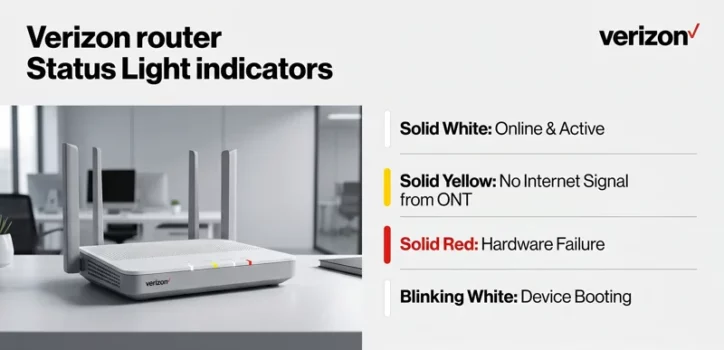
Dealing with a verizon router yellow light can instantly halt your daily routine, especially when your 2026 smart home, remote work setup, and entertainment systems rely entirely on a seamless fiber-optic connection. When you look at your Verizon Fios router and see a solid yellow glow instead of the comforting white light, it serves as a clear, immediate indicator that something has interrupted your access to the World Wide Web.
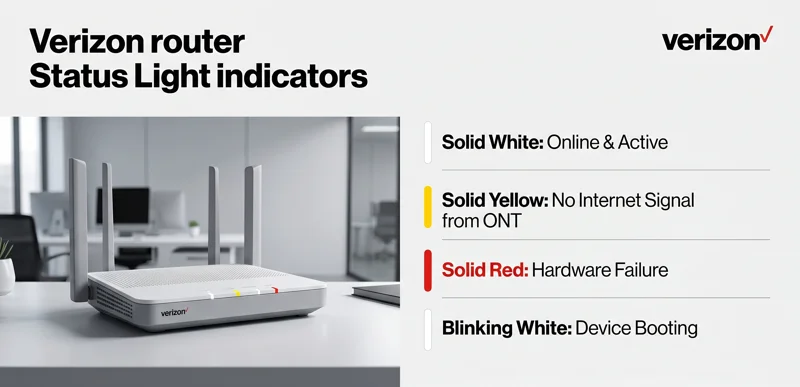
Understanding the hardware ecosystem of your home network is the first step toward effective troubleshooting. Verizon routers are engineered to be highly communicative through their LED interface. While a blinking white light indicates booting and a red light signals a hardware failure, the yellow light occupies a unique middle ground. It tells you that your local network is active, but the bridge to the outside internet is broken.
Contents
What Does the Solid Yellow Light Actually Mean?
To fix the problem, we must first diagnose it accurately based on E-E-A-T (Experience, Expertise, Authoritativeness, and Trustworthiness) principles. A solid yellow light on a Verizon router specifically means that the router is powered on, functioning mechanically, and actively broadcasting your local Wi-Fi network, but it cannot detect an incoming internet signal from the Optical Network Terminal (ONT).
If you connect to your Wi-Fi network while the light is yellow, your device (smartphone or laptop) will likely show a “Connected, No Internet” status. This means your devices can talk to the router, and they can even talk to each other over your Local Area Network (LAN), but the router cannot route any traffic out to Verizon’s servers or the broader internet.
| Router LED Color | Network Status | Immediate Action |
|---|---|---|
| Solid White | Fully connected to the internet. | None required. |
| Solid Yellow | Router is on, but no internet signal from ONT. | Check cables and verify service outages. |
| Solid Red | Critical hardware failure or system error. | Contact Verizon for hardware replacement. |
| Blinking White | Device is booting or applying firmware. | Wait 10 minutes for startup to complete. |
Common Causes Behind the Yellow Light Warning
The transition from a stable connection to a yellow light rarely happens without a specific trigger. By 2026, Fios infrastructure is highly resilient, meaning that when errors occur, they are usually localized to your specific property or neighborhood node.
The most frequent cause is a physical disruption between the router and the ONT. This connection is typically bridged by a high-grade Ethernet cable (Cat 6 or Cat 7) or a coaxial cable. If this cable becomes dislodged, damaged by pets, or degraded, the data flow stops instantly, triggering the yellow warning.
Another major factor is neighborhood service outages. Fiber optic lines are buried underground or strung across utility poles. Severe weather events, construction accidents, or routine maintenance by Verizon engineers can temporarily sever the connection to your local node. When this happens, your router correctly identifies that the outside connection has vanished.
“A yellow light is essentially your router raising its hand to say: I am working perfectly fine, but the internet service provider has stopped sending me data to process.”
Step-by-Step Troubleshooting for the Yellow Light
When dealing with networking hardware, it is critical to follow a logical progression of troubleshooting steps. Do not jump immediately to drastic measures like a factory reset. Instead, start with the most common and easily fixable external factors before investigating internal software configurations.
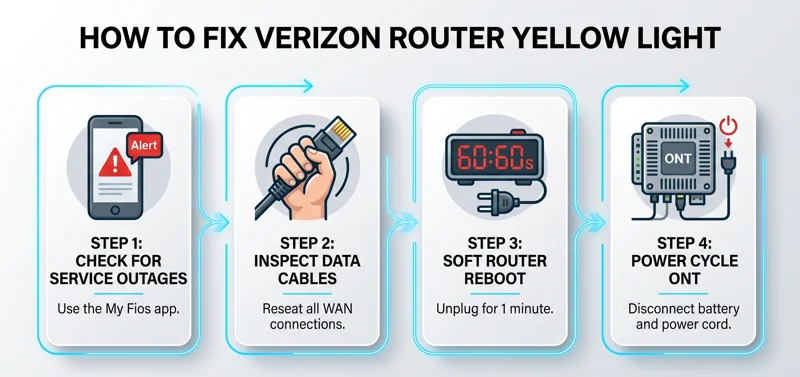
Step 1: Verify There Are No Local Outages
Before you start pulling cables or moving heavy furniture, confirm that the problem is actually inside your house. Turn off the Wi-Fi on your smartphone and use your cellular data to log into the My Fios app. You can also check the network status directly through the Verizon Official Outage Support portal. If Verizon reports an outage in your area, you simply have to wait for their technicians to resolve it.
Step 2: Inspect the Data Cables
If there is no outage, proceed to a physical inspection. Follow the cable that runs from the WAN port on the back of your Verizon router to the wall or directly to the ONT. Unplug this cable from the router, check the gold pins for any dust or damage, and plug it back in firmly until you hear a distinct click. Do the same for the other end of the connection.
| Diagnostic Step | Target Component | Expected Resolution Time |
|---|---|---|
| Outage Check | ISP Infrastructure | 2 Minutes |
| Cable Reseating | Ethernet / Coax Cables | 3 Minutes |
| Soft Reboot | Router Memory (RAM) | 5 Minutes |
| ONT Power Cycle | Optical Network Terminal | 15 Minutes |
Step 3: Perform a Soft Router Reboot
Sometimes, the router simply experiences a minor software glitch that prevents it from renewing its IP address lease with Verizon’s servers. A soft reboot clears the active memory and forces a fresh connection attempt. Unplug the power cable from the back of the router. Leave it unplugged for a full 60 seconds to allow all residual power to drain, then plug it back in. Wait approximately three to five minutes for the startup sequence to complete.
Step 4: Power Cycle the Optical Network Terminal (ONT)
If the router reboot fails, the issue is highly likely related to the ONT. The ONT is the device that converts the optical light signals from the fiber optic street cable into standard electrical signals for your router. If the ONT hangs or crashes, the router will show a yellow light.
Locate your ONT—usually found in a garage, utility closet, basement, or mounted on the exterior of your house. To properly reboot it, you must unplug its main power cord from the electrical outlet. Importantly, most Fios ONTs have a Battery Backup Unit (BBU) to keep voice services running during power outages. You must open the BBU panel and disconnect the battery as well. Wait two minutes, reconnect the battery, and plug the main power back in.
Advanced Diagnostics: Software and Hardware Conflicts
If you have physically verified the connections, rebooted the router, and power-cycled the ONT, but the yellow light remains stubbornly lit, you are facing a deeper technical issue. In some cases, a corrupted DNS cache or a severe IP address conflict on the Verizon network can lock your router out of the internet.
The last resort troubleshooting step is the Factory Reset. This action wipes the router’s operating system back to its original state, deleting your custom Wi-Fi name, password, port forwarding rules, and connected device history. To do this, locate the recessed ‘Reset’ button on the back panel. Use a paperclip to press and hold it for 15 seconds. The router will completely wipe itself and reboot.
“A factory reset should always be treated as a last resort; while it resolves deeply ingrained software conflicts, it requires the user to rebuild their entire smart home network from scratch.”
Maintaining Network Health in 2026
Once you successfully turn that yellow light back to white, proactive maintenance can prevent future downtime. The physical placement of your hardware plays a massive role in its longevity. Modern gigabit routers generate significant heat as they process massive amounts of encrypted data. Ensuring your router is in a well-ventilated area, away from direct sunlight and heavy appliances, is essential.
Furthermore, ensure that your router is plugged into a high-quality Surge Protector or an Uninterruptible Power Supply (UPS). Power fluctuations, even minor ones that do not cause your lights to flicker, can degrade the sensitive electronic components inside the router and the ONT over time, leading to unexpected connection drops and the dreaded yellow light.
| Maintenance Task | Frequency | Benefit |
|---|---|---|
| Inspect Ethernet Cables | Every 6 Months | Prevents physical data loss and disconnections. |
| Dust Router Vents | Every 3 Months | Improves thermal management and prevents overheating. |
| Proactive Reboot | Once a Month | Clears volatile memory and refreshes IP leases. |
When to Call Verizon Tech Support
There is a limit to what a homeowner can fix. If you have executed every step in this guide, including the factory reset, and the yellow light persists, you likely have a hardware failure on your hands. The fiber optic line running to your house may be damaged, the ONT may have a burned-out port, or the WAN port on the router itself may be defective.
At this stage, you must contact Verizon support to schedule a field technician. Do not attempt to open the ONT casing or splice fiber optic cables, as this is dangerous and can lead to permanent damage and severe financial penalties from the ISP. Inform the phone representative of the steps you have already taken to expedite the dispatch process.
You may also like: Why Your Verizon Travel Pass Keeps Activating
You may also like: Verizon Router Blinking White? Quick Fixes & Expert Troubleshooting
Frequently Asked Questions
Can a bad storm cause my Verizon router to turn yellow?
Yes. Severe weather can knock out power to neighborhood fiber nodes or physically damage overhead lines, severing your connection to the internet while your local router remains powered on.
Will my smart home devices still work if the router is yellow?
Only partially. Devices that communicate locally, like some smart switches talking to a local hub, might still function. However, anything requiring cloud access, like voice assistants or remote camera viewing, will be offline.
How long does an ONT reboot take?
After you reconnect power to the ONT, it typically takes about 3 to 5 minutes for it to establish a handshake with the central office and send an internet signal back to your router.
Do I need a new router if the yellow light won’t go away?
Not necessarily. While router failure is possible, a persistent yellow light is more commonly caused by a dead ONT or a severed fiber line outside your home. A technician must diagnose the exact point of failure.
Can I use my own router to fix the yellow light issue?
If the issue is with the Verizon router’s WAN port, using a third-party router might solve it. However, if the ONT or the outside line is the problem, changing routers will not restore your internet.
Why does the yellow light happen more often at night?
If you notice the connection dropping briefly at night, Verizon may be pushing localized network updates or firmware patches. If it doesn’t turn white by morning, it requires troubleshooting.
What happens if I press the WPS button while the light is yellow?
Pressing the WPS button will attempt to pair local devices to your Wi-Fi network, but because the router has no internet connection, those paired devices will still not be able to browse the web.
Disclaimer: This article is for informational purposes only. The troubleshooting steps provided are based on standard 2026 networking practices. Modifying ISP hardware carries inherent risks. Always consult official Verizon documentation or contact certified tech support for complex network failures or hardware replacement.