If your verizon travel pass keeps activating without your permission, you are likely facing an incredibly frustrating and expensive problem.
For many travelers in 2026, checking their mobile carrier bill after an international trip often reveals unexpected $10 or $12 daily fees for services they thought they were not using.
TravelPass is designed to be a convenient feature, allowing you to use your domestic talk, text, and data allowances in over 210 countries and destinations.
However, modern smartphones are highly autonomous. They constantly seek network connections to update apps, fetch emails, and maintain location services in the background.
When you step off a plane and your phone connects to a foreign cell tower, even the tiniest byte of background data can trigger a 24-hour TravelPass session.
Contents
Understanding How Verizon TravelPass Works
Before you can stop the charges, you need to understand exactly what triggers the activation of a TravelPass session.
Verizon does not charge you just for being in another country. The daily fee is only triggered when your device actively communicates with a foreign cellular network.
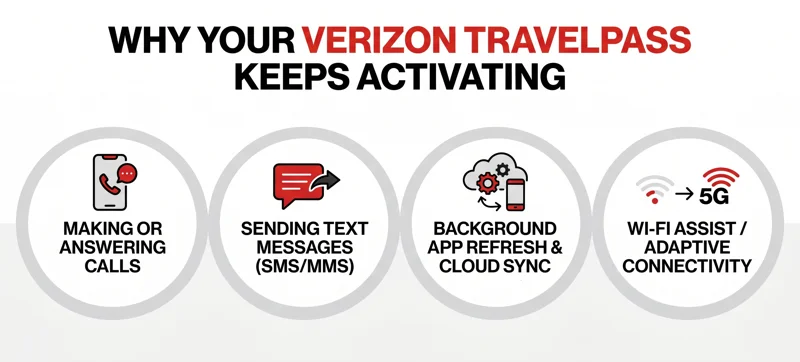
This communication can take three forms: making or receiving a phone call, sending a text message, or using cellular data.
Receiving a standard SMS text message usually does not trigger the pass, but sending one definitely will. Furthermore, receiving an MMS (picture message or group text) uses data, which will immediately activate the daily fee.
The most common culprit for unwanted charges is background data. You might not be browsing the web, but your phone’s background processes are silently communicating with local cell towers.
Top Reasons Your Verizon Travel Pass Keeps Activating
Let us dive deep into the specific reasons your device might be betraying your wallet while you travel.
Understanding these triggers is the first step toward effective troubleshooting and taking back control of your cellular billing.
1. Background Data and Cloud Syncing
Smartphones are designed to keep your life seamlessly updated. This means your email app is constantly pinging the server to see if you have new messages.
Similarly, cloud services like iCloud, Google Photos, or OneDrive might try to back up the photos you just took on your vacation.
If your device loses its Wi-Fi connection even for a split second, it will automatically fall back to cellular data to complete these background tasks.
This tiny data transfer, which happens invisibly in your pocket, is enough to start a new 24-hour billing cycle with Verizon.
2. Wi-Fi Assist and Adaptive Connectivity
Both iOS and Android have features designed to ensure a smooth internet experience by jumping to cellular data when a Wi-Fi signal is weak.
On Apple devices, this is called “Wi-Fi Assist.” On Android, it is often called “Adaptive Connectivity” or “Smart Network Switch.”
If you are connected to a hotel Wi-Fi network that drops momentarily, your phone will use cellular data to keep your connection alive, instantly triggering your TravelPass.
3. Proximity to International Borders
You do not even have to leave the United States to experience this issue. This phenomenon is commonly known as “accidental roaming.”
If you live or travel near the borders of Canada or Mexico, your phone might latch onto a stronger signal from a foreign cell tower.
Even if you are physically standing in New York or Texas, your phone might think it is in Canada or Mexico, activating the pass.
| Action / Activity | Triggers TravelPass? | Risk Level |
|---|---|---|
| Making an outgoing phone call | Yes | High |
| Answering an incoming call | Yes | High |
| Receiving a standard SMS text | No | Low |
| Sending an SMS or any iMessage | Yes | High |
| Background app refreshing | Yes (Uses Data) | Very High |
How to Prevent Unwanted TravelPass Activations
Now that we know the causes, let us implement the solutions. You have several tools at your disposal to lock down your phone’s cellular activity.
Applying these settings before you board your flight is the best way to ensure you are not hit with bill shock when you return home.
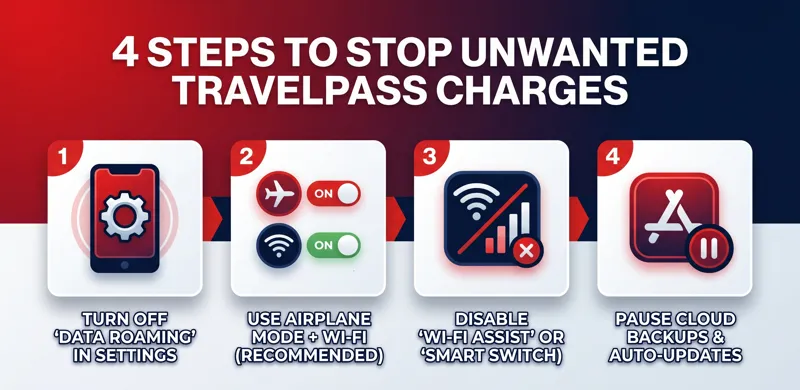
Method 1: Turn Off Cellular Data and Data Roaming
This is the most crucial step. By turning off data roaming, you instruct your phone never to connect to a foreign network for internet access.
On an iPhone, go to Settings > Cellular > Cellular Data Options, and toggle “Data Roaming” to the off position.
On an Android device, navigate to Settings > Network & Internet > Mobile Network, and ensure “Roaming” is disabled.
For extra security, you can turn off “Cellular Data” entirely while traveling, relying solely on secure Wi-Fi networks.
Method 2: Utilize Airplane Mode Constantly
If you want to be one hundred percent certain that your Verizon Travel Pass keeps activating no more, Airplane Mode is your best friend.
Turning on Airplane Mode disables all cellular radios in your device, making it impossible to connect to a foreign cell tower.
The great thing about modern smartphones is that you can turn on Airplane Mode, and then manually re-enable Wi-Fi and Bluetooth.
This allows you to connect to hotel Wi-Fi, use internet messaging apps like WhatsApp or iMessage, and connect your wireless headphones without risking a carrier charge.
When using Wi-Fi calling abroad to avoid charges, always verify that your phone is in Airplane Mode first. If the Wi-Fi drops and the call routes through a local cellular tower, your TravelPass will activate immediately.
Method 3: Disable Wi-Fi Assist / Smart Network Switch
As mentioned earlier, you must disable the feature that automatically switches you to cellular data when Wi-Fi is poor.
For iOS users, go to Settings > Cellular, scroll all the way to the very bottom past your list of apps, and turn off “Wi-Fi Assist.”
For Android users, search your settings for “Adaptive Connectivity” or “Network switch” and disable the feature completely while traveling.
Advanced Solutions: Removing TravelPass from Your Account
If adjusting your phone settings feels too risky, you can take action directly at the account level.
You can manage how your lines handle international roaming through the My Verizon app or the Verizon website.
Removing the TravelPass Feature
You have the option to completely remove the TravelPass feature from your specific line via your Verizon account dashboard.
However, be warned: if you remove TravelPass but leave your phone’s data roaming turned on, you will be billed at standard Pay-As-You-Go international rates.
Pay-As-You-Go rates are incredibly high. You could be charged over $2.00 per megabyte of data, which can result in hundreds of dollars in fees in just a few minutes.
Therefore, only remove TravelPass if you are absolutely confident you have disabled all cellular capabilities on your device.
Using Local eSIMs in 2026
The most popular alternative to Verizon’s international plans in 2026 is the use of local eSIM providers.
Services like Airalo, Holafly, or Nomad allow you to download a digital SIM card directly to your phone, giving you cheap, local data.
If you choose this route, you must ensure your primary Verizon line has data roaming completely disabled so it does not interfere with the eSIM data connection.
| International Option | Average Cost (2026) | Best Use Case |
|---|---|---|
| Verizon TravelPass | $10 – $12 / Day | Short trips, business travelers wanting seamless use. |
| International Monthly Plan | $100 / Month | Long trips spanning multiple weeks in one billing cycle. |
| Prepaid Travel eSIM | $5 – $30 / Trip | Budget travelers wanting heavy data without carrier fees. |
| Pay-As-You-Go | Extremely High | Emergencies only. Not recommended for general use. |
What to Do If You Were Charged by Mistake
Even with the best preparation, mistakes happen. A rogue app might bypass your settings, or an accidental pocket dial might trigger the daily fee.
If you return home to find a bill inflated by unwarranted TravelPass sessions, you should immediately contact Verizon customer support.
Be polite but firm. Explain that you had data roaming turned off and that the activation must have been caused by an unavoidable background system ping.
In many cases, if it is your first time complaining about this issue, customer service representatives have the authority to issue a courtesy credit for the unintended charges.
For more detailed policies on international billing, you should review the Verizon Official TravelPass Support page.
Conclusion: Taking Control of Your Mobile Billing
Traveling should be about making memories, not stressing over carrier charges.
By understanding that a Verizon Travel Pass keeps activating due to background data and automatic network switching, you can take the necessary preventative steps.
Rely on Airplane Mode, strictly manage your Wi-Fi settings, and consider modern eSIM alternatives to ensure your mobile bill remains exactly as you expect it to be.
Frequently Asked Questions
Why did my TravelPass activate when I didn’t open any apps?
Your smartphone constantly runs background processes, such as checking for software updates, syncing cloud data, and pinging location services. Any of these tiny data transfers will trigger the daily TravelPass fee.
Does receiving a text message activate Verizon TravelPass?
Generally, receiving a standard SMS text does not trigger the pass. However, receiving an MMS (picture message or group chat) uses cellular data and will instantly activate the daily charge.
How long does a TravelPass session last?
A single TravelPass session lasts for exactly 24 hours from the exact minute it is triggered. Any usage within that 24-hour window is covered by the single daily fee.
Can I use Wi-Fi calling without triggering the TravelPass?
Yes, but it is risky. To safely use Wi-Fi calling to call back to the US without triggering the pass, you must place your phone in Airplane Mode and then turn Wi-Fi back on. This ensures the call cannot accidentally route through a foreign cellular tower.
How do I stop my phone from connecting to towers near the Canadian or Mexican border?
If you live near a border and experience accidental roaming, you should turn off “Data Roaming” in your cellular settings. You can also contact Verizon to request that international roaming blocks be placed on your specific line.
Will checking my voicemail trigger the international fee?
Yes. Calling your voicemail requires an active cellular connection to your carrier, which counts as an outgoing call while abroad and will trigger the TravelPass session.
Is it better to just remove TravelPass from my account completely?
Not necessarily. If you remove TravelPass but fail to properly turn off cellular data, your phone will use data at standard Pay-As-You-Go rates, which can be astronomically expensive compared to the flat daily fee.
Disclaimer: This article is for informational purposes only. Cellular plans, pricing, and device settings are subject to change by the carrier and manufacturers. Always verify your current plan details and roaming settings directly with Verizon before traveling internationally to avoid unexpected charges.