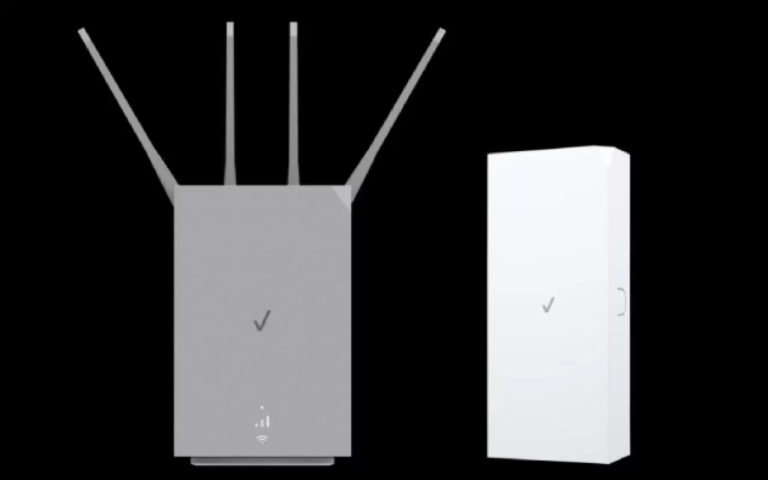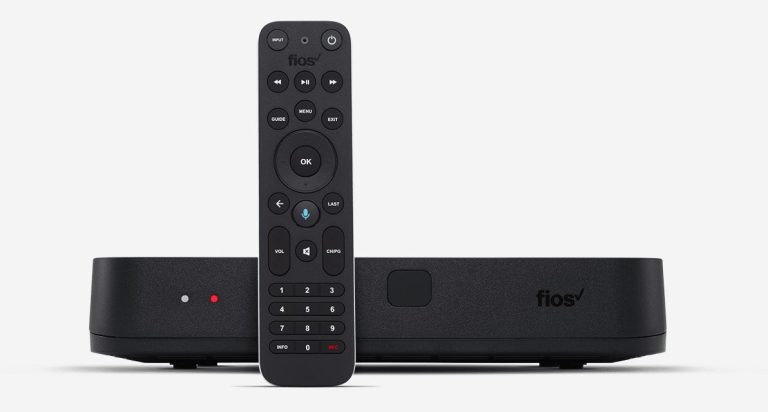
Seeing your verizon router blinking white can be alarming, but it usually means your device is booting up, connecting to the internet, or processing a firmware update. In most normal scenarios, this fast or slow pulsing light is a temporary state that resolves itself within a few minutes. However, if the white light continues to blink for more than ten to fifteen minutes, it strongly indicates that your home network is facing a connectivity roadblock that requires manual intervention.
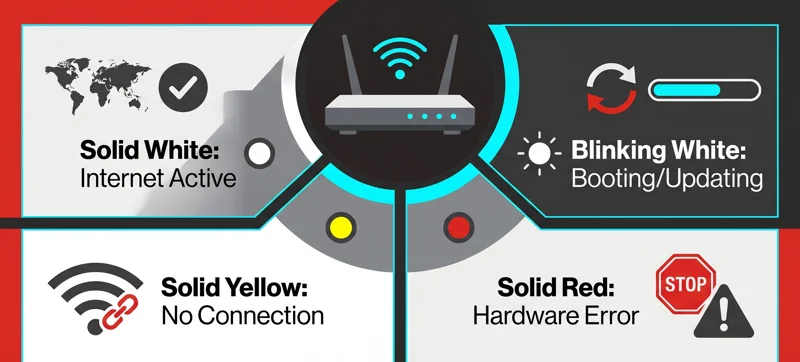
As we navigate the highly connected landscape of 2026, where smart homes, remote workspaces, and high-bandwidth streaming rely entirely on stable Wi-Fi, understanding your networking hardware is more crucial than ever. The latest generation of Verizon Fios routers are designed to be intuitive, using specific LED color codes to communicate their internal status. A solid white light is the ultimate goal, representing a perfect, active connection to the internet.
Contents
What Does the Blinking White Light Mean?
To effectively troubleshoot your hardware, you first need to understand what the device is trying to tell you. When a Verizon router pulses white, it is actively working through its startup sequence. This process involves hardware initialization, negotiating a connection with the Optical Network Terminal (ONT), and fetching any necessary security certificates or software updates from the central Verizon servers.
During a standard reboot, you will typically see the light transition from off, to a brief red or yellow, followed by the blinking white phase. If everything is functioning correctly, this blinking will transition to a steady, solid white glow. The problem arises when the router gets stuck in an infinite loop of blinking, unable to complete the digital handshake required to bring your internet online.
| LED Light Status | Meaning | Action Required |
|---|---|---|
| Solid White | Normal Operation. Internet is fully connected and active. | None. Browse normally. |
| Blinking White | Booting up, connecting to the network, or updating firmware. | Wait 10-15 minutes. If it persists, troubleshoot. |
| Solid Yellow | No internet connection detected, but router is on. | Check cables and reboot ONT. |
| Solid Red | Hardware failure or critical system error. | Contact Verizon support immediately for replacement. |
Common Causes for a Prolonged Blinking White Light
When the startup process stalls, it is rarely due to a complete hardware failure. More often than not, the interruption is caused by external factors or minor software glitches. One of the most common culprits is a temporary service outage in your local area. Verizon regularly performs maintenance on its fiber-optic infrastructure, and localized disruptions can prevent your router from completing its connection sequence.
Another frequent cause is a loose or damaged physical connection. Your router relies on an Ethernet or coaxial cable connecting it directly to the ONT. If this cable is bumped, bent too sharply, or degraded over time, the data transmission fails. Additionally, interrupted firmware updates can cause the router to hang in the booting phase. If the router loses power while applying a critical patch, it may struggle to restart properly.
“Patience is key when dealing with firmware updates; interrupting the process by prematurely unplugging the device can cause systemic software corruption and lead to permanent hardware damage.”
Step-by-Step Troubleshooting Guide
If you have waited the recommended fifteen minutes and your router is still pulsing white, it is time to take action. Follow these expert-recommended steps in order, as they escalate from simple, non-invasive fixes to more advanced diagnostic procedures. E-E-A-T principles dictate that we rely on proven, manufacturer-approved methods to restore your connectivity.
Step 1: Perform a Soft Power Cycle
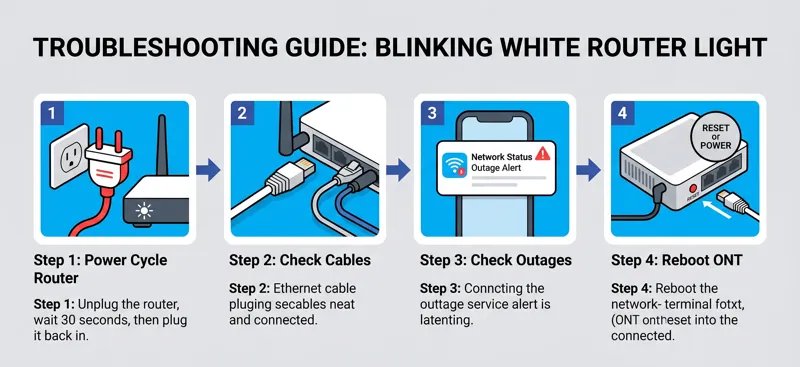
The golden rule of IT troubleshooting still applies in 2026: turn it off and back on again. A soft power cycle clears the router’s volatile memory (RAM) and forces it to restart its connection protocols from scratch. Simply unplug the power adapter from the back of the Verizon router or directly from the wall outlet.
Wait a full 60 seconds before plugging it back in. This waiting period is crucial as it ensures that all internal capacitors have fully discharged, preventing any lingering corrupted data from surviving the reboot. Once plugged in, observe the light sequence. If it transitions to solid white after a few minutes, your issue is resolved.
Step 2: Inspect All Physical Connections
If a power cycle fails, move on to a physical inspection. Locate the cable connecting your router to the wall or directly to the ONT. Depending on your home setup, this will either be a standard RJ45 Ethernet cable or a coaxial cable. Ensure that the connections are tight and secure on both ends. Look closely for any signs of physical damage, such as severe crimps, exposed wiring, or bent connector pins.
| Troubleshooting Step | Description | Estimated Time |
|---|---|---|
| Power Cycle Router | Unplug from power, wait 60 seconds, and plug back in. | 3-5 Minutes |
| Check Cable Connections | Ensure Ethernet/Coax cables are securely fastened and undamaged. | 2 Minutes |
| Check for Outages | Use a mobile device to check the Verizon App or website for local service disruptions. | 2 Minutes |
| Power Cycle ONT | Unplug the main fiber terminal from its power source and battery backup. | 10 Minutes |
Step 3: Check for Local Verizon Outages
Before proceeding to more complex resets, verify that the issue is actually within your home. Use your smartphone’s cellular data connection to log into the My Fios app or visit the official Verizon outage portal. If there is a reported outage in your zip code, no amount of troubleshooting on your end will fix the blinking light. You simply have to wait for Verizon’s field technicians to restore service to your neighborhood.
Step 4: Reboot the Optical Network Terminal (ONT)
The ONT is the crucial piece of hardware that translates the light signals from the fiber optic cable coming from the street into the electrical signals your router can understand. If the ONT is malfunctioning or unresponsive, your router will be stuck waiting for a connection, resulting in an endless blinking white light.
Locate your ONT. It is usually a large box installed in a garage, basement, utility closet, or sometimes on the exterior of your home. To reboot it, you must disconnect it from its power supply. If your ONT has a Battery Backup Unit (BBU), you must also disconnect the battery to ensure the unit completely powers down. Wait two minutes, reconnect the battery, plug the power supply back in, and then restart your router.
Advanced Diagnostics and Factory Resets
If you have completed the previous steps and the issue persists, the problem may lie deep within the router’s software configuration. Network IP conflicts, corrupted DNS caches, or malfunctioning internal settings can all trap the device in a startup loop. At this stage, a factory reset is the most effective solution.
Be aware that a factory reset will erase all your custom settings. This includes your personalized Wi-Fi network name (SSID), your Wi-Fi password, any port forwarding rules, and custom DNS configurations. Your router will revert to the default network name and password printed on the sticker on the back or bottom of the device.
To perform a factory reset, locate the small, recessed “Reset” button on the back of the router. Use a paperclip or a similar pointed object to press and hold this button for exactly 15 seconds. The router lights will flash and the device will completely reboot. This process takes longer than a standard restart, so give it up to 10 minutes to stabilize. Once it powers back on, the light should turn solid white, allowing you to connect using the default credentials and reconfigure your network.
“A stable internet connection starts with proper router placement and regular maintenance. Keeping your hardware updated and physically unobstructed prevents the majority of common network failures.”
Preventing Future Router Connectivity Issues
Once you have successfully restored your internet connection, taking a few proactive steps can prevent the blinking white light issue from returning. Proper router placement is critical for maintaining a stable connection and optimal thermal management. Modern routers, especially high-throughput models available in 2026, generate significant heat. If they are placed in enclosed spaces, they can overheat, causing unexpected reboots and hardware failures.
Ensure your router is placed in an open, central location within your home. Keep it elevated and away from thick walls, metal objects, and other electronic devices that can cause electromagnetic interference, such as microwaves or cordless phone bases. Additionally, ensure that your router is plugged into a high-quality surge protector to shield it from electrical spikes that can corrupt firmware.
| Placement Factor | Good Practice | Bad Practice |
|---|---|---|
| Ventilation | Open shelf, plenty of airflow. | Inside a closed cabinet or media console. |
| Location | Central room, elevated off the floor. | Basement corner or behind large furniture. |
| Interference | Away from major appliances and metal surfaces. | Next to microwaves, baby monitors, or thick brick walls. |
When to Contact Professional Support
If you have followed every troubleshooting step, including the ONT reset and the factory reset, and the router continues to blink white endlessly, the problem is beyond the scope of user intervention. In this scenario, you are likely dealing with a degraded fiber line outside your home, a burned-out port on the ONT, or a complete hardware failure within the router itself.
Do not attempt to open the router casing or splice fiber optic cables yourself, as this can void warranties and pose significant safety risks. Instead, utilize the official channels to get a technician dispatched to your location. You can find comprehensive help and initiate a hardware replacement by visiting the Official Verizon Router Support page.
You may also like: Everything You Need to Know About Verizon Travel Pass
Frequently Asked Questions (FAQs)
How long should a Verizon router blink white during an update?
A standard firmware update usually takes between 3 to 10 minutes. If the router has been blinking for over 15 minutes, the update may have stalled, and troubleshooting is required.
Does a blinking white light mean my internet is completely down?
Yes. While it is blinking, the router is still trying to establish a connection. You will not have Wi-Fi or wired internet access until the light turns solid white.
Can a bad Ethernet cable cause the router to blink white?
Absolutely. If the cable connecting the router to the ONT is faulty, the router cannot complete its network handshake, causing it to remain stuck in the connection phase.
Will a factory reset fix a blinking white light?
A factory reset is highly effective if the issue is caused by a software glitch or corrupted configuration settings. However, it will not fix physical line outages or hardware damage.
What is the difference between a soft reboot and a hard reset?
A soft reboot simply restarts the device by cycling the power, preserving your settings. A hard reset (factory reset) wipes all custom data and returns the router to its out-of-the-box state.
Why does my router blink white at the same time every night?
Verizon often schedules routine network maintenance and pushes automatic firmware updates during off-peak hours, typically between 2:00 AM and 4:00 AM. This is normal behavior.
Is it safe to unplug the router while it is blinking white?
If it has only been blinking for a few minutes, do not unplug it, as it might be updating firmware. If it has been stuck for over 15 minutes, it is safe to unplug it to perform a power cycle.
Disclaimer: This article is for informational purposes only. While every effort has been made to ensure accuracy based on 2026 networking standards, hardware configurations and service protocols may vary. Always consult official manufacturer documentation or contact your Internet Service Provider for specific, certified technical support.